
GA4 Showing Draft Posts? Why Draft Blogs Appear in Analytics
GA4 showing draft posts often triggers unnecessary concern among WordPress site owners who notice unpublished blog titles appearing inside analytics dashboards.
This behavior feels counterintuitive at first. Especially when content is still being edited and deliberately kept private within the publishing workflow.
Why This Confusion Can Lead to Wrong Decisions
When people misinterpret this behavior, they often react emotionally.
They may assume their draft has leaked into search results.
Also, they may rush publication before the article is ready.
They may start distrusting GA4 altogether.
Over time, this erodes confidence in analytics and leads to reactive publishing habits. Clean data matters, but calm interpretation matters more.
Understanding why GA4 showing draft posts happens prevents unnecessary stress and protects your content workflow.
A Familiar Moment for Many Content Creators

Amit was drafting a long article late at night.
Before publishing, he checked GA4 out of habit.
There it was.
The draft title, already visible in reports.
His first thought was immediate panic.
“Google can see this.”
He searched forums, refreshed dashboards, and even considered deleting the post. Later, after speaking to a technical editor, he realized the truth. Analytics had tracked his preview, not public traffic.
That clarity changed how he read data forever.
What GA4 Is Actually Observing
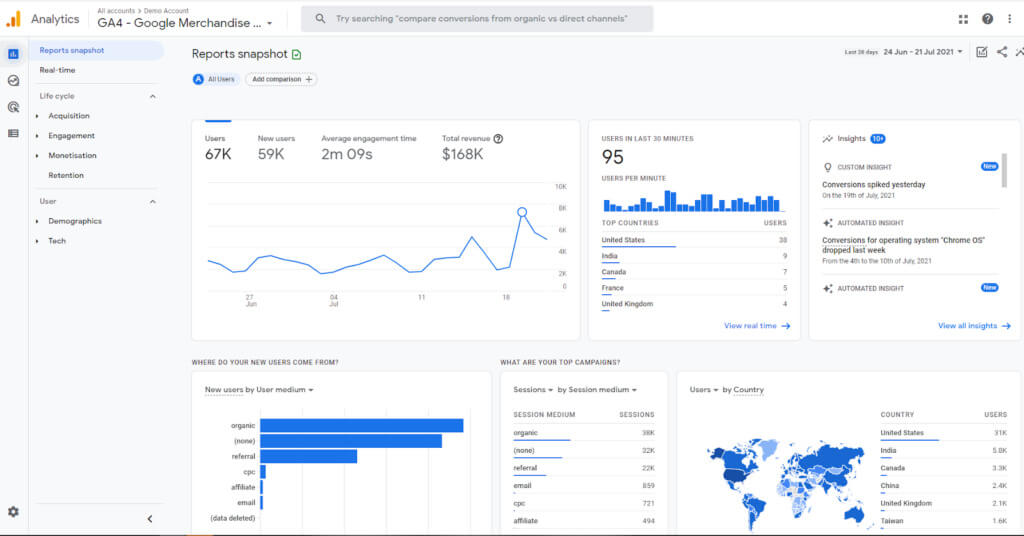
GA4 does not judge whether a page is published.
It records whether a page loads with its tracking code active.
When a draft is previewed, opened in a new tab, or viewed by a logged-in user, the page loads normally in a browser. At that moment, GA4 records the event.
This is why GA4 showing draft posts is common and expected behavior, not a security flaw or SEO issue.
A Clear, Practical Way to Think About It
To make sense of this, separate three concepts.
Analytics measure activity.
WordPress controls access.
Search engines control indexing.
GA4 answers only one question.
“Did this page load somewhere?”
It does not answer who can see it publicly or whether it is searchable.
The Solution, Broken Into Simple Steps
Step 1: Recognize the Difference Between Viewing and Publishing
Previewing a draft creates a temporary, permission-based URL.
That URL behaves like a normal page for analytics purposes.
This is the most common reason behind GA4 showing draft posts.
Step 2: Remember That Titles Are Not Proof of Exposure
GA4 reports page titles aggressively.
It does not confirm public visibility.
Seeing a title does not mean users or search engines can access the page.
Step 3: Use the Right Tool to Check Indexing
If your concern is visibility, Google Search Console is the authority.
GA4 is not designed to answer indexing questions.
Using it for that purpose creates unnecessary fear.
Step 4: Test Privacy the Correct Way
Log out of WordPress.
Open an incognito window.
Paste the draft URL.
If the page does not load, the content is private.
No analytics report overrides that fact.
Step 5: Clean Analytics Only If You Truly Need To
If draft views clutter reports, you may filter preview URLs or internal traffic.
This is optional, not required.
Many professional publishers accept this noise as part of normal content creation, even when GA4 showing draft posts appears repeatedly.
Summary of Steps GA4 Showing Draft Posts
| Step | What This Actually Means | Practical Use Case or Example |
|---|---|---|
| 1. Viewing vs Publishing | Previewing a draft creates a temporary, permission-based URL that loads like a real page. Analytics scripts fire normally on it. | You click “Preview” while logged in. GA4 records a pageview even though visitors cannot access the post publicly. This is the most common reason behind GA4 showing draft posts. |
| 2. Titles Are Not Exposure | GA4 aggressively records page titles but does not verify who can access the page or whether it is public. | You see a draft title in GA4 reports and assume it is live. In reality, only editors or logged-in users triggered the view. |
| 3. Indexing Requires the Right Tool | GA4 measures activity. Google Search Console measures indexing. Mixing the two creates false alarms. | Before panicking, check Search Console. If the draft URL is not indexed there, it is invisible to search users. |
| 4. Privacy Testing Done Right | True visibility is tested by removing permissions, not by reading analytics dashboards. | Log out, open incognito, paste the draft URL. If it does not load, the content is private regardless of GA4 data. |
| 5. Optional Analytics Cleanup | Draft and preview traffic can be filtered, but it is not mandatory for most publishers. | Large editorial teams often filter preview URLs. Solo creators usually ignore this noise, even when GA4 showing draft posts appears repeatedly. |
How Experienced Publishers Interpret the Same Signal

Neha manages a growing content site with multiple editors.
Drafts are viewed constantly.
She noticed GA4 showing draft posts early on but chose not to react emotionally. Instead, she focused on one rule.
“If it is not indexed, it is not public.”
That single principle allowed her to trust her workflow and use analytics calmly rather than defensively.
The Deeper Insight Behind GA4 Showing Draft Posts
Drafts are not invisible.
They are access-controlled.
Analytics see activity.
Editors see content.
Search engines wait for permission.
Once this distinction is clear, GA4 showing draft posts stops feeling like a problem and starts feeling like neutral technical behavior.
FAQs
FAQ 1: Why does this GA4 behavior often lead to poor decisions?
This confusion usually leads people to assume visibility equals exposure. When draft titles appear in analytics, creators may rush publication, distrust their data, or waste time fixing a non-issue. Misreading analytics blurs the line between internal activity and public access.
FAQ 2: Why do content creators commonly encounter this situation?
Most creators preview drafts multiple times before publishing. Each preview loads the page in a browser with analytics enabled. This creates a familiar but misleading signal in GA4 that feels like public exposure, even though it is not.
FAQ 3: What exactly is GA4 observing when draft posts appear?
GA4 observes page loads, not publishing status. If a page loads with the tracking code active, GA4 records it. It does not evaluate permissions, indexing, or public accessibility. This is why GA4 showing draft posts is normal behavior.
FAQ 4: How should visibility be checked the right way?
Visibility should be checked using access tests and Search Console, not analytics. Logging out and opening the draft URL in incognito confirms privacy. Google Search Console confirms indexing. GA4 is not designed for either of these checks.
FAQ 5: How do experienced publishers interpret GA4 showing draft posts?
Experienced publishers treat it as neutral background noise. They focus on indexing status and access control, not dashboard surprises. Once the distinction between activity tracking and exposure is understood, GA4 showing draft posts stops influencing publishing decisions.
Related Posts
AI Search Trust Crisis: Why SEO Must Change Fast
AI Search Optimization — Why Old SEO Won’t Save You Now
Elevating Your “Website E-E-A-T” Factor in SEO: A Practitioner’s Guide
Beyond Google: Exploring Alternative Search Engines for SEO
Conclusion
GA4 showing draft posts is not a warning sign, but a reminder to interpret analytics through the right lens.
When you separate activity tracking from public visibility, analytics regain their proper role.
Stay focused on indexing status, not dashboard surprises, and your publishing decisions remain calm and deliberate.