Until recently, browsing meant juggling attention.
Research lived in one tab, email in another, and planning tools somewhere else.
Over time, this friction added up.
Tasks stretched longer than needed. Context was lost.
Small decisions became mentally tiring.
The absence of a unifying layer meant you were always stitching information together yourself.
That gap shaped daily habits. People skimmed instead of understanding.
They postponed planning.
They missed details hidden across sites.
What arrives now is not a dramatic overhaul, but a quieter shift.
A way to keep context intact, reduce switching costs, and let the browser carry some of the cognitive weight.
That alone changes how time feels online.
Main Benefits of Gemini in Chrome: Everyday Life Example
What Gemini in Chrome Does
Everyday Life Example
How It Helps You
Connects information across Gmail, Calendar, and the web
You get a school trip email and your browser reminds you of the date and travel details
Saves time, no need to search in many places
Supports browsing without taking control
Like a helper who suggests things but lets you decide
You stay in charge and feel less confused
Remembers preferences if you allow it
Like a notebook that remembers how you like things done
Makes future tasks faster and easier
Uses auto browse for step by step tasks
Filling a long form once instead of again and again
Reduces boring work and mistakes
Helps with travel and planning research
Checking bus or flight options across different days
Gives better choices without extra effort
Keeps passwords safe with permission
A locked key box that opens only when you say yes
Protects your accounts and privacy
Edits images safely inside the browser
Trying filters on a photo without changing the original
No risk of losing your original file
Works on common devices
Using the same helper on a laptop or Chromebook
Easy access without learning new tools
Gemini in Chrome and the Side Panel Experience
It keeps helpful assistance visible while you continue working, so your focus stays steady across tabs. As a result, you avoid constant switching, which reduces distraction and preserves mental clarity. Over time, research and comparison feel smoother, because context stays intact while tasks move forward.
Browsing Without Breaking Your Flow
The most visible change appears as a side panel that stays with you, regardless of which tab you open.
Gemini in Chrome lives there, always accessible, never intrusive.
You can read an article while asking for a summary elsewhere. Compare products without closing your main page. Check dates while drafting a note.
This matters because attention is fragile.
Each tab switch pulls you out of the task at hand. The side panel removes that small but constant disruption.
You keep your primary work open. The assistant works alongside it. Quietly. Efficiently.
When Multitasking Stops Feeling Messy
Ask a question. Pull context from another site. Clarify a detail.
All without losing your place.
For many users, this changes how research feels. Less scattered. More continuous.
Almost conversational.
The experience is not about speed alone. It is about reducing mental overhead.
When you no longer have to remember where something came from, you can focus on what it means.
Visual Creativity Comes to the Browser
Editing Images Where You Find Them
Images often spark ideas, but acting on them used to require extra steps. Download. Upload. Open another tool.
Now, Gemini in Chrome allows image transformation directly inside the browser using Nano Banana.
You see a photo. You describe what you want to change.
The result appears without leaving the page. This could be a redesigned living room concept or a cleaner visual from dense research data.
The barrier between inspiration and execution becomes thinner.
Why This Feels Different
The shift is subtle but important.
Creativity no longer demands setup time. It happens in context.
While you are already engaged.
That immediacy encourages exploration, even for people who never thought of themselves as visual thinkers.
It connects email, calendar, maps, and travel details, so related information stays linked automatically together. As a result, you spend less time searching and more time acting with clear context. Importantly, you stay in control while the browser quietly supports decisions across Google apps daily.
Context Travels With You
Modern tasks rarely live in one place.
Emails reference events. Events link to locations.
Locations affect travel plans.
Gemini in Chrome connects these threads across Gmail, Calendar, Maps, Flights, Shopping, and more.
Imagine planning a conference trip. The assistant can surface the original invitation email, check flight options, and help draft a message to colleagues.
You do not have to manually connect the dots. The browser already understands the relationships.
Productivity Without Micromanagement
These integrations do not replace your decisions.
They reduce the setup work.
You remain in control, but the system handles recall and cross referencing. It feels less like automation and more like support.
Personal Intelligence and a More Adaptive Web
Browsing That Remembers Context
In the coming months, Personal Intelligence will extend into Chrome.
This means the browser can remember past interactions, preferences, and instructions, if you choose to enable it.
Over time, responses become more relevant to you.
This is not about surveillance. It is opt-in. You decide what connects and what disconnects.
The benefit is continuity. The browser no longer treats every question as if it is your first.
From Tool to Trusted Partner
With memory comes anticipation.
The assistant can surface what matters faster. It can adjust tone. It can align with how you work. That sense of being understood is subtle, but powerful.
Gemini in Chrome and Auto Browse Capabilities
Letting the Browser Handle the Legwork
Auto browse introduces agentic behavior.
The browser can take on multi-step tasks, such as researching travel options across dates or filling out repetitive forms.
For eligible subscribers, this extends beyond suggestions into action.
The key change is delegation. You describe the goal.
The browser handles the process. It checks options, gathers information, and pauses when confirmation is required.
Everyday Tasks, Handled Differently
People have used auto browse to manage subscriptions, collect documents, compare service quotes, and even renew licenses.
These are not glamorous tasks.
That is the point. Removing friction from the mundane frees attention for what actually matters.
Gemini in Chrome in Action: Real World Use Cases and Benefits
Capability Area
Use Case
Benefits
Cross App Context in Chrome
Planning a conference trip using Gmail invites, Calendar dates, Maps locations, and flight options
Eliminates manual cross checking, reduces cognitive load, keeps all related information connected automatically
Context Aware Browsing
Revisiting past tasks, preferences, or instructions during research or drafting
Saves time, avoids repetition, delivers more relevant responses without starting from scratch
Assisted Email and Document Drafting
Drafting follow up emails, coordination messages, or summaries tied to events or plans
Faster communication, fewer errors, clearer alignment with context
Productivity Without Automation Overreach
Supporting decisions rather than making them
Maintains user control, reduces setup work, feels like assistance not micromanagement
Personal Intelligence Memory
Remembering user preferences, tone, and recurring needs (opt in)
Improves continuity, personalization, and efficiency over time
Adaptive Interaction Style
Adjusting responses based on how the user works
Creates a more natural and trusted working relationship
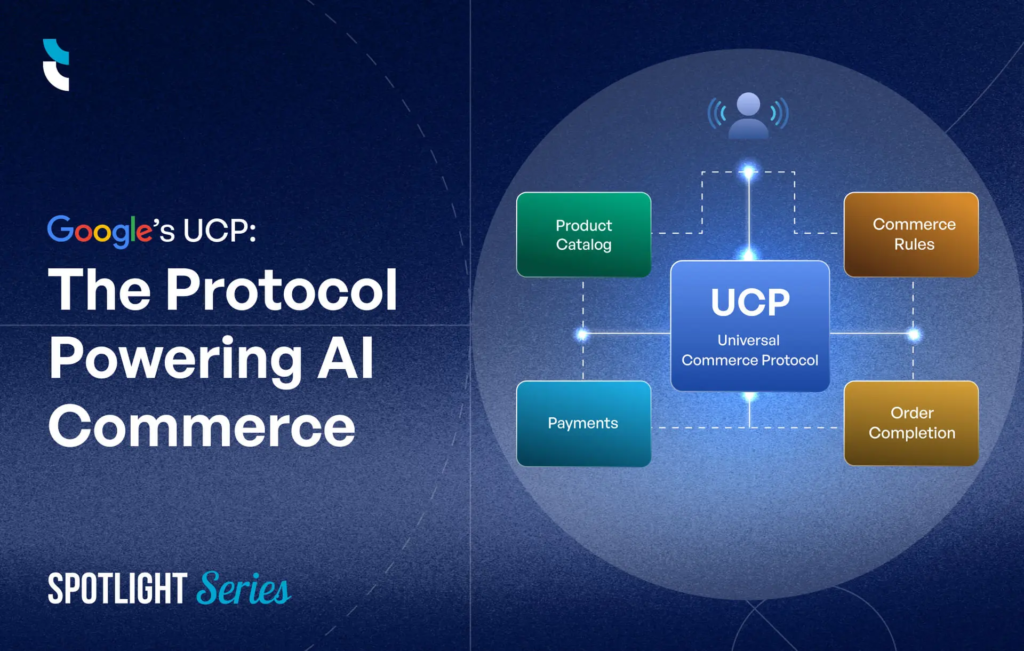
Chrome now supports the Universal Commerce Protocol, developed with major platforms like Shopify and Target.
This open standard ensures AI agents can act consistently across stores, without locking users into a single ecosystem.
For you, this means smoother purchasing experiences when you choose to allow assistance.
Items can be added to carts.
Discounts applied. Budgets respected.
Security by Design
Sensitive actions always require confirmation.
Purchases pause. Social posts wait for approval. Auto browse asks before proceeding.
These safeguards are not afterthoughts.
They are built into the experience.
Trust grows when control is visible. And here, it is.
Frequently Asked Questions
1. Does Gemini in Chrome replace traditional web browsing?
No. Gemini in Chrome enhances manual browsing instead of replacing it. You still open websites and make decisions yourself. The AI simply helps connect information across Google services and reduces repetitive steps while keeping you in control.
2. How does Gemini in Chrome use context from Gmail and Google Calendar?
Gemini in Chrome can understand relationships between emails, events, and dates. For example, it can link a Gmail invitation with your Google Calendar schedule to help you plan faster without searching across multiple tabs.
3. Is Personal Intelligence in Chrome required to use Gemini features?
No. Personal Intelligence is optional and fully opt in. You can choose what information the browser remembers, adjust preferences anytime, or turn it off completely while still using basic Gemini in Chrome assistance.
4. What types of tasks does auto browse in Chrome work best for?
Auto browse works best for structured, multi step workflows like comparing flight prices, filling online forms, or collecting documents. It is not designed for creative thinking or personal judgment decisions.
5. How does Gemini in Chrome handle passwords and login details?
Passwords are not shared automatically. Gemini only accesses credentials through Google Password Manager and only when you give clear permission. This keeps account security and user privacy protected at all times.
6. Can Gemini in Chrome edit images or files on my device?
No. Any image editing or file transformation happens inside the browser environment. Original files on your device remain unchanged unless you explicitly download or save a modified version yourself.
7. Is Gemini in Chrome available on Windows, macOS, and Chromebooks?
Yes. Gemini in Chrome currently supports Windows PCs, macOS systems, and Chromebook Plus devices. Availability may expand over time as Google continues rolling out AI powered browser features.
8. How is Gemini in Chrome different from Google Assistant or Gemini app?
Gemini in Chrome works directly inside the browser. It understands web context, open tabs, and connected Google services. This makes it more useful for research, planning, and everyday browsing tasks.